


Welcome to Techblet.com. This article takes you through the guide on how you can check the 4G band of your smartphone.
Full 4G coverage in Nigeria is becoming a reality and many internet network providers( MTN, GLO, ETISALAT) are deploying 4G networks to many Villages and Towns in Nigeria.
In fact, now, MTN has started deploying 5G in major cities in Nigeria.
However, there are still villages that are not fully covered in terms of 4G coverage. Here, I am going to show you how to check the 4G band frequency of any smartphone that supports the 4G Network.
In Nigeria we have 3 major networks with 4G LTE services, they are MTN, Glo and Etisalat while Spectranet, Ntel, Swift and Smile are the new entrants in the 4G LTE revolution currently going on in the country. Most of these Network providers in Nigeria use bands 3, 4, 7, 20 or 28. So it is important to check if a phone has 4G LTE support for the network provider you are using before making a buying decision.
Internet Network providers in Nigeria and their 4G Band Frequencies
- MTN 4G LTE , supports band 20 (800MHz) and Band 7 (2600MHz)
- Glo 4G LTE, supports band 28 (700MHz)
- Etisalat 4G LTE, supports band 3 (1800MHz)
- NTEL 4G LTE, supports band 8 (900MHz) and Band 3 (1800MHz)
- Spectranet and Swift, support band 40 (2300mhz)
- Smile, supports band 20 (800mhz)
How to Check the 4G band Frequency of any Smartphone without any App

Before now, you are told to download the Engineering mode app from Google PlayStore before you can check the 4G frequency band of a phone, but with this new process, you won’t be needing any app before you can check your phone’s 4G frequency band.
To get started, you will need a Unique code to dial and enter the engineering mode of your phone straight away.
- Dial *#9646633# to enter engineering mode and swipe to Telephone Tab
- Scroll down to select Band Mode
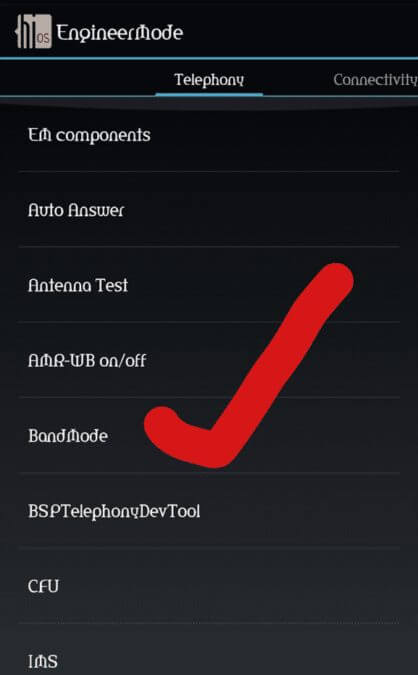
- Tab on Band Mode and select SIM1 if is your default SIM for data otherwise select SIM 2
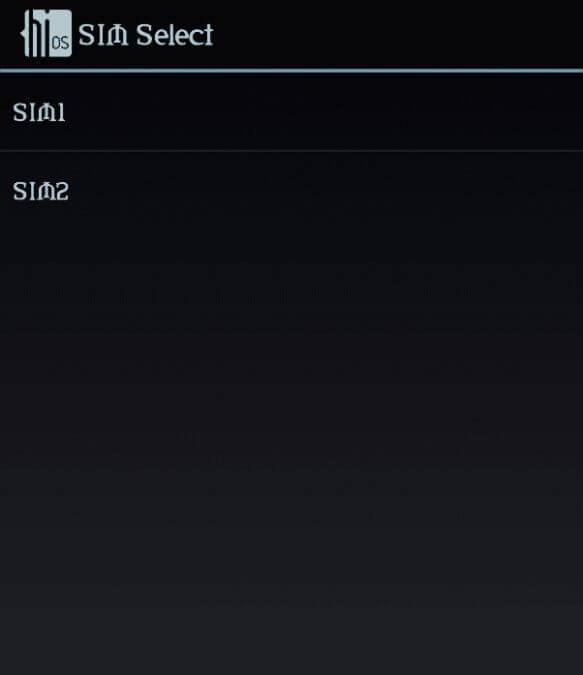
- Scroll down to LTE MODE and you will see the list of 4G bands ticked , the ticked bands are the supported bands for your phone.

Above is how to check the 4G band frequency of any smartphone. Feel free to leave your questions below.

I tried your instructions on my Samsung Galaxy Note 3 (SM-N900) running Android 5-0 and it DID NOT WORK!
You need to specify what range of devices your instructions above will work on and any other intricate detail required to be followed if it is to work on ANY/ALL device brand/model. If you don’t believe that it failed for me, reply to me with your email and I’ll mail you evidence in the form of a screen video recording of how your instructions failed on my device!
I tried the code on my camon x pro it gave me warning to enable my debug mode
I have a question about the call
I calling some one Immediately phone it show to Me call ended
How can I call some one?
Please am getting a reply as
Em is an advanced debug mode.
If you want to entry the Em, please entry the developer options at settings!
What did was the I plugged my phone to my PC then choose from usb connection mode from there I switched on the developer mode…
The code actually worked on my k9
I just now entered the race.LOL!
the code doesn’t work on my LG phone
Doesn’t work on oppo phones either useless
I got the code,i’ll try it soon.
The code didn’t work on my infinx XOS chameleon.
Please better change the title of this your post from any mobile phone to mediatek phones only. Because this code will never work on snapdragon phones
God bless you, the title is misleading because this process does not work on Samsung devices.
Please admin can you help me with any article on how to unlock all the lte bands on tecno camon cx air