

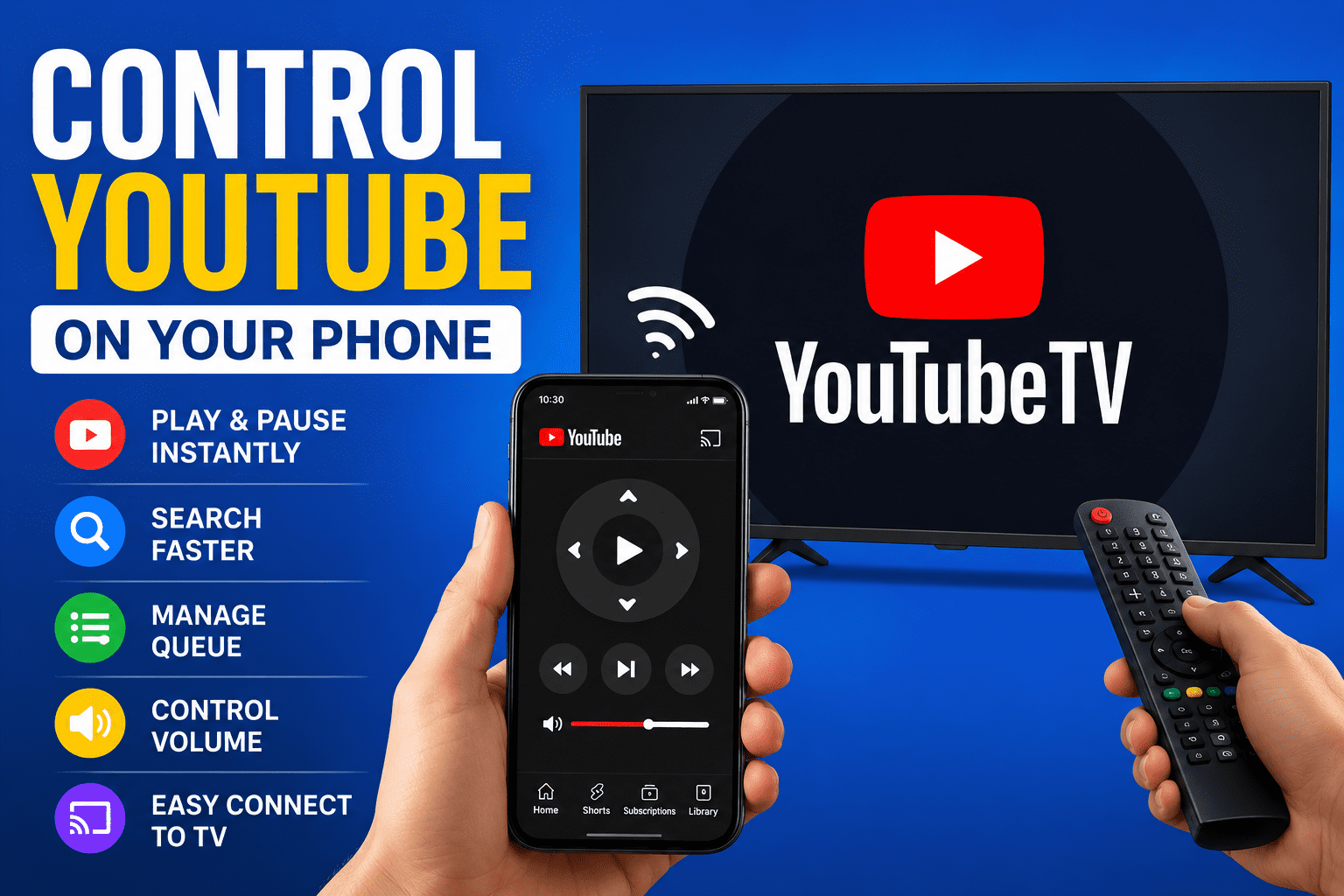
Watching YouTube on a large TV screen has become one of the most popular ways to enjoy videos, music, podcasts, sports highlights, movies, and live streams. However, typing with a TV remote or searching for videos directly on a television can sometimes feel slow and frustrating.
Thankfully, YouTube allows users to control YouTube on a smart TV directly from a smartphone. With this feature, your phone becomes a powerful remote control that lets you search, play, pause, skip videos, adjust queues, and even cast videos instantly to your TV.
Whether you use Android or iPhone, this guide explains everything you need to know about using your smartphone to operate YouTube on your TV.
What You Need Before You Start
Before connecting your smartphone to YouTube on your TV, ensure the following requirements are met:
- A Smart TV with the YouTube app installed
- A smartphone with the YouTube app installed
- A stable Wi-Fi connection
- Both devices connected to the same Wi-Fi network
- Updated YouTube app on both devices
This feature works with most smart TVs, Android TVs, Google TVs, streaming devices, Chromecast, Fire TV devices, gaming consoles, and some TV boxes.
Method 1: Connect YouTube on TV Using the Cast Button
This is the easiest and most popular way to control YouTube on a TV with a smartphone.
Step 1: Open YouTube on Your TV
Turn on your smart TV and launch the YouTube app.
Leave the app open on the TV screen.
Step 2: Connect Your Smartphone to the Same Wi-Fi
Ensure your smartphone is connected to the same Wi-Fi network as your TV.
This is important because the YouTube app uses the shared network to discover nearby devices.
Step 3: Open the YouTube App on Your Smartphone
Launch the YouTube app on your Android phone or iPhone.
Sign in to your Google account if necessary.
Step 4: Tap the Cast Icon
Look for the Cast icon at the top-right corner of the YouTube app.
The icon looks like a small TV screen with Wi-Fi waves.
Tap the icon.
Step 5: Select Your TV
A list of available devices will appear.
Tap the name of your TV or streaming device.
Once connected, the TV will display a confirmation message.
Step 6: Start Controlling YouTube
Search for any video on your phone and tap Play.
The video will instantly appear on your TV screen.
Your smartphone now becomes a YouTube remote control.
You can:
- Play and pause videos
- Adjust volume
- Skip videos
- Add videos to queue
- Search faster using your phone keyboard
- Browse playlists
- Control playback from anywhere in the room
Method 2: Connect Using the YouTube TV Code
If the Cast feature is unavailable or your devices are not automatically detecting each other, you can connect manually using a TV code.
Step 1: Open YouTube on Your TV
Launch YouTube on the TV.
Step 2: Go to Settings
Using your TV remote:
- Open the left-side menu
- Scroll to Settings
- Select “Link with TV Code”
A blue TV code will appear on the screen.
Step 3: Open YouTube on Your Smartphone
On your phone:
- Open the YouTube app
- Tap your profile picture
- Go to Settings
- Select “Watch on TV”
Step 4: Enter the TV Code
Tap “Enter TV Code.”
Type the code displayed on your TV.
Tap Connect.
Your smartphone will now link directly to the TV.
How to Queue Videos from Your Smartphone
One major advantage of controlling YouTube with your phone is the ability to create video queues easily.
To add videos to queue:
- Find a video on your phone
- Tap the three dots beside the video
- Select “Add to Queue”
The videos will play automatically on your TV in the selected order.
This is useful for:
- Music playlists
- Worship sessions
- Educational tutorials
- Family entertainment
- Party video playlists
How to Use Your Phone as a Full YouTube Remote
Once your smartphone is connected to YouTube on your TV, your phone becomes much more than just a casting device — it works almost like a complete remote control for YouTube.
Instead of using your TV remote to type slowly, search for videos, or navigate menus, you can control nearly everything directly from your smartphone screen. This makes watching YouTube faster, easier, and more convenient.
Here’s a detailed breakdown of how to use your smartphone as a full YouTube remote.
1. Play and Pause Videos
After connecting your phone to the TV:
- Open any video on your smartphone
- Tap Play
The video instantly starts playing on the TV.
While the video is playing, playback controls will appear on your phone screen. You can:
- Pause the video
- Resume playback
- Restart the video
- Skip to another part of the video using the timeline slider
This works exactly like using a traditional TV remote, but with a more responsive touchscreen interface.
For example, if you receive a phone call or someone wants to discuss something briefly, you can pause the YouTube video instantly from your phone without searching for the TV remote.
2. Search for Videos Faster Using Your Phone Keyboard
One of the biggest advantages of using your smartphone as a YouTube remote is faster searching.
Typing with a TV remote can be frustrating because you usually have to move letter by letter on an on-screen keyboard. With your smartphone, you can simply use your normal keyboard.
To search:
- Open the YouTube app on your phone
- Tap the search icon
- Type the video title, artist name, movie trailer, tutorial, or channel name
Once you select the video, it immediately appears on the TV.
This makes it easier to:
- Search for long video titles
- Browse educational tutorials
- Find music quickly
- Search during parties or gatherings
- Discover recommended videos faster
3. Skip Videos and Move to the Next Video
Your smartphone also lets you control what plays next on the TV.
While a video is playing:
- Tap the Next button to move to another video
- Swipe through recommendations
- Select another video instantly
You do not need to touch the TV remote at all.
This is especially useful when:
- Watching playlists
- Streaming music videos
- Watching tutorial series
- Running YouTube in the background during events
4. Adjust the Video Queue
The queue feature allows you to line up multiple videos to play automatically one after another.
To use the queue:
- Find a video on your smartphone
- Tap the three dots beside the video
- Select “Add to Queue”
The video joins the playlist currently playing on the TV.
You can also:
- Rearrange videos in the queue
- Remove videos
- Add more videos while watching
- Create a continuous entertainment session
This is perfect for:
- Music sessions
- Worship playlists
- Kids’ cartoons
- Family movie clips
- Sports highlight compilations
5. Control Volume from Your Smartphone
In many cases, your smartphone can also help control volume during playback.
Depending on your TV and device compatibility:
- Your phone’s volume buttons may adjust YouTube volume directly
- You may see an on-screen volume slider inside the YouTube app
This means you can lower or increase volume without searching for the physical TV remote.
6. Browse While the TV Keeps Playing
One of the most useful features is the ability to continue browsing YouTube on your phone while the TV keeps playing the current video.
For example:
- The TV continues showing a football match
- Meanwhile, you search for the next video on your phone
The current video remains uninterrupted until you choose another one.
This creates a smoother entertainment experience because browsing does not disturb what people are watching on the TV.
7. Like, Comment and Subscribe from Your Phone
While videos play on the TV, you can still interact with YouTube normally using your smartphone.
You can:
- Like videos
- Subscribe to channels
- Read comments
- Post comments
- Share videos
This is much easier than attempting these actions with a TV remote.
8. Use Voice Search on Your Smartphone
Most smartphones support voice search inside the YouTube app.
Instead of typing:
- Tap the microphone icon
- Speak the video name or topic
For example:
- “Latest football highlights”
- “Motivational sermons”
- “Comedy videos”
- “Afrobeats playlist”
The results appear instantly and can be played directly on the TV.
This makes YouTube navigation faster and more hands-free.
9. Control YouTube from Anywhere in the Room
Unlike traditional TV remotes that require close range or direct pointing, your smartphone works over Wi-Fi.
This means you can:
- Sit anywhere in the room
- Control YouTube from the kitchen
- Change videos while lying in bed
- Manage playback during gatherings
As long as the phone remains connected to the same Wi-Fi network, it continues controlling the TV.
10. Disconnect the TV Anytime
When you finish watching:
- Tap the Cast icon
- Select Disconnect
Your phone immediately stops controlling the TV.
The TV can then continue independently or return to normal operation.
Why Using a Smartphone as a YouTube Remote Is Better
Many users now prefer smartphones over traditional TV remotes because smartphones offer:
- Faster typing
- Better navigation
- Easier searching
- Touchscreen convenience
- Voice search support
- Better playlist management
- More responsive controls
For frequent YouTube users, using a smartphone as a YouTube remote significantly improves the overall viewing experience.
Final Thoughts
Using your smartphone to control YouTube on your TV is one of the easiest ways to improve your viewing experience. Instead of struggling with TV remotes and slow typing, your phone gives you faster navigation, better control, and more convenience.
Whether you are watching movies, music videos, tutorials, sports, or live streams, connecting YouTube between your smartphone and TV makes entertainment smoother and more enjoyable.
As smart home technology continues to evolve, smartphone-based TV control is quickly becoming the preferred way many people interact with their televisions.
